Getting Plex Running on Steam Frame

I wanted Plex on my Steam Frame so I could watch films from my own library in the headset. Installing the Android app got me as far as the welcome screen. Signing in made it crash.
Lepton was missing Android’s clipboard service, which Plex expected during sign-in and library setup. Adding a small clipboard helper stopped the crashes. I signed in by linking the app in TV mode and could then play videos from my library. I’ve bundled the helper with a launcher and icon so Plex can be opened from the Steam library.
Install Lepton Development through Steam on the Frame’s internal storage first. I used Lepton 2.8.14 and the Plex APK linked below.
SSH access
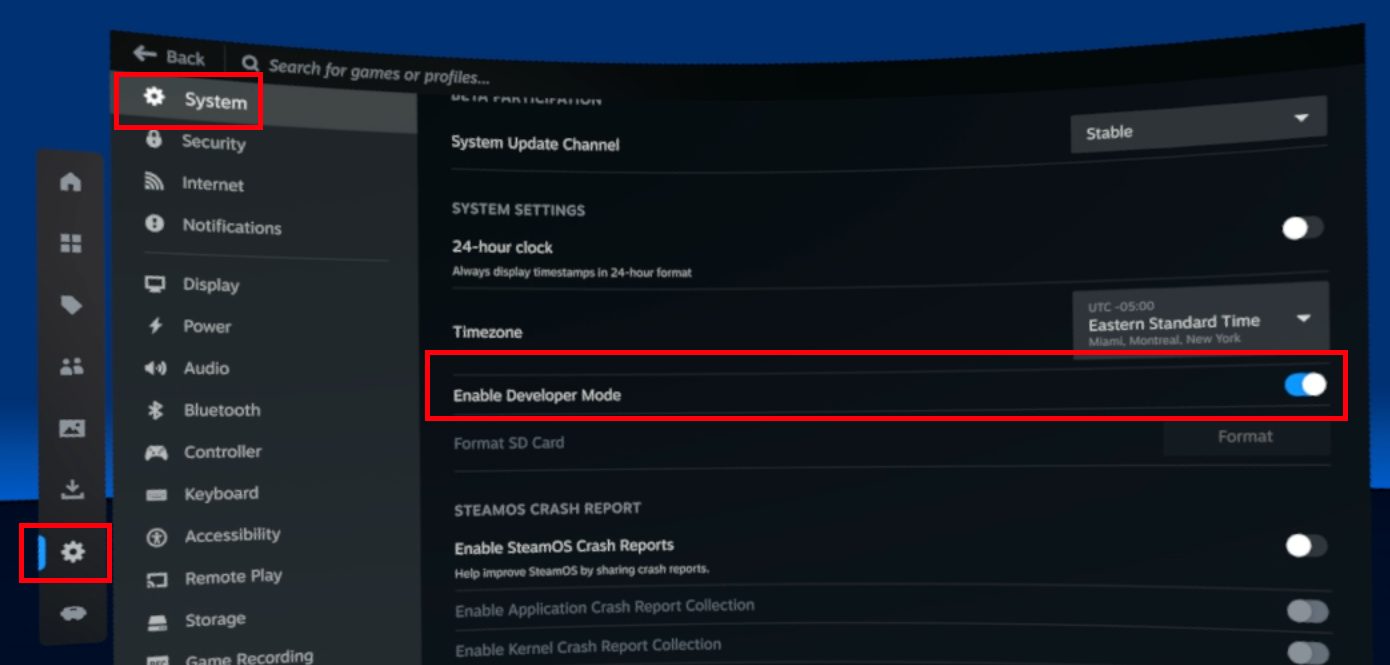
Enable Steam Settings → System → Enable Developer Mode.
I set the SSH password by connecting a physical keyboard to the Frame, switching to Desktop Mode and running this in Terminal:
passwdConnect from your computer, keeping the headset awake:
ssh steamos@frameUse the headset’s IP address if frame doesn’t resolve. Valve’s SSH documentation has more on connecting to the Frame.
Install the launcher and clipboard helper
With Steam running and Plex closed, run these commands over SSH as steamos. The archive includes the helper’s source code.
cd "$HOME"
curl -fL --retry 3 -o plex-steam-frame-helper.tar.gz \
  'https://kaspa.rs/content/files/2026/10/plex-steam-frame-helper-v1.0.1.tar.gz'
tar -xzf plex-steam-frame-helper.tar.gz
(cd plex-steam-frame-helper && sha256sum -c SHA256SUMS) && \
bash plex-steam-frame-helper/install.shThe installer puts the files in ~/Applications/Plex and asks Steam to add a Plex shortcut. Accept the Add to Steam prompt on the headset if it appears.
Download the Plex APK
This is the ARM64 release I used, downloaded directly from Plex:
cd "$HOME/Applications/Plex"

curl -fL --retry 3 -o plex.apk.download \
  'https://downloads.plex.tv/Kepler/kepler-arm64-v8a-googlePlay-10.28.0.3441-367a93b4.apk'

echo '371e831d87309279ac78c4d85e82282adc66873c2d79d386a1666b14b8f57acc  plex.apk.download' \
  | sha256sum -c - && mv plex.apk.download plex.apk
Launch Plex
Open Plex from Non-Steam in your Steam library. Leave the shortcut’s compatibility override disabled; the launcher starts Lepton itself.
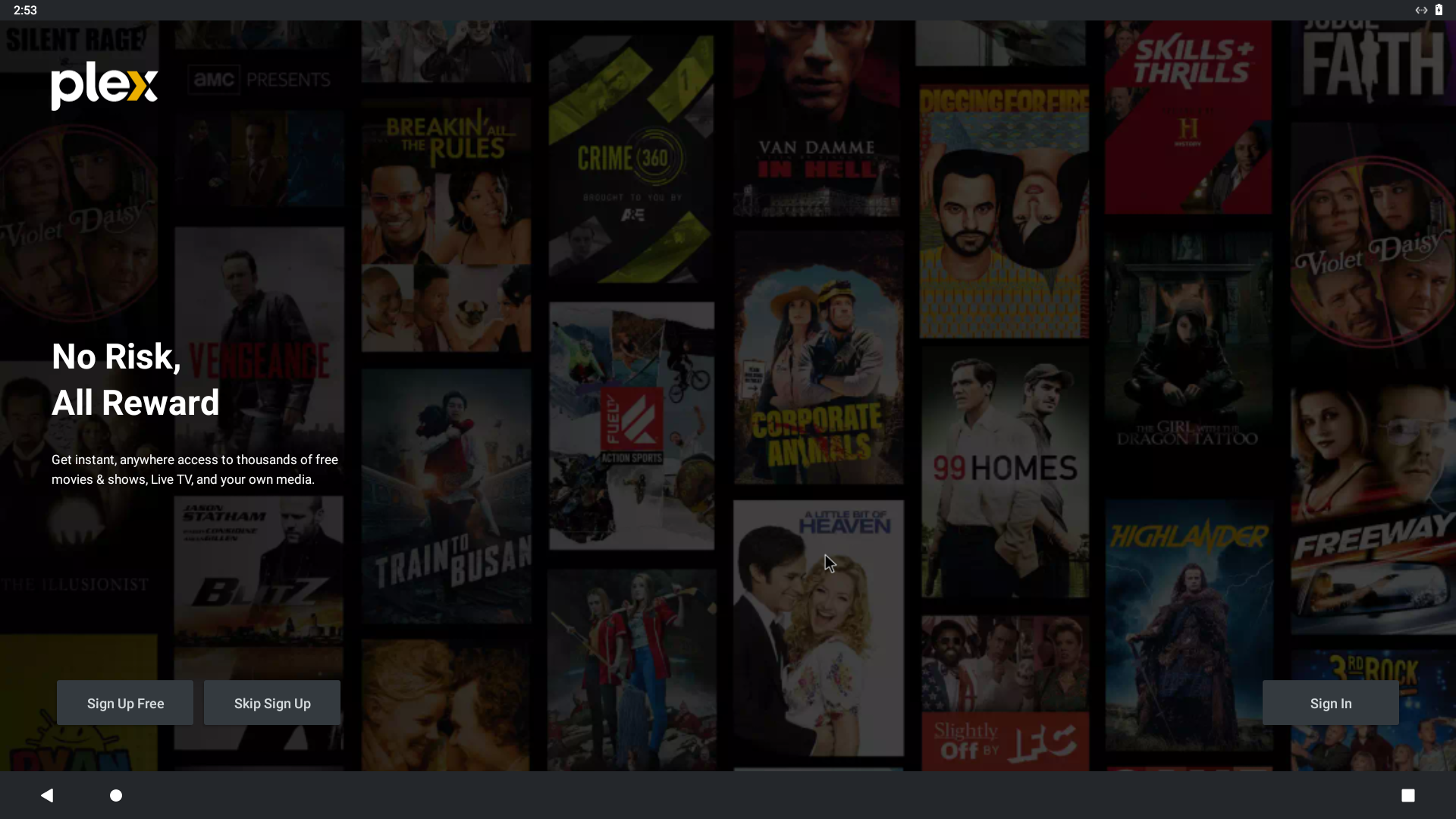
The helper does not force TV mode. Plex first opened in mobile mode on my Frame. Launch it once to create its settings, then use the layout-switching steps below before trying the TV linking code. Later launches remember your chosen layout.
Sign in with the TV linking code
Signing in with my username and password didn’t work for me. I switched Plex to TV mode and linked it through the browser instead.
TV mode shows plex.tv/link and a four-character code. There is no QR code on this screen. The default mobile interface does not show the TV linking code, so switch the application layout to TV before signing in.
In mobile mode, open the menu, tap the settings gear, then choose Experience → Application layout → TV. TV Settings crashed on my Frame with Plex 10.28.0.3441, so use SSH to switch back if that happens to you. Mobile Settings worked.
To change the layout over SSH, close Plex using Steam’s Exit game option first. After Plex has been launched at least once, run these two lines as steamos for TV mode, then reopen it from Steam:
prefs="$HOME/Applications/Plex/compatdata/internal/com.plexapp.android/shared_prefs"
sed -i 's@<string name="general.layout">[01]</string>@<string name="general.layout">1</string>@g' "$prefs"/*.xml
Open Plex again from your Steam library and choose Sign In. Leave the four-character code visible on the Frame. On your phone or computer, open https://plex.tv/link in a browser, sign in to your Plex account and enter the code shown on the Frame. Plex then links the app to your account and signs you in automatically.

For mobile mode, close Plex, run these two lines and reopen it. Your login and other settings are preserved; use whichever interface you prefer.
prefs="$HOME/Applications/Plex/compatdata/internal/com.plexapp.android/shared_prefs"
sed -i 's@<string name="general.layout">[01]</string>@<string name="general.layout">0</string>@g' "$prefs"/*.xml
After signing in, choose your libraries. You can stay in TV mode or use the mobile interface—pick whichever works better with your controls.
If it fails to launch
A missing-Lepton error means the launcher couldn’t find Lepton on internal storage. If the helper reports that Lepton’s launch hooks have changed, it needs updating for that Lepton version.
For SSH dropouts, see Fixing Wi-Fi Dropouts on Steam Frame.
Extras
These are optional additions to the launcher. Close Plex using Steam’s Exit game option, then download the extras over SSH as steamos, without sudo:
cd "$HOME"
curl -fL --retry 3 -o plex-steam-frame-extras.tar.gz \
  'https://kaspa.rs/content/files/2026/10/plex-steam-frame-extras-v1.0.0.tar.gz'

echo '0b1ab375cec97ceb4517659539e4b402afc42249dcec475123f51106d9d275da  plex-steam-frame-extras.tar.gz' \
  | sha256sum -c - && tar -xzf plex-steam-frame-extras.tar.gz
cd plex-steam-frame-extras
Hide the Android bars
TV mode changes Plex’s interface, but Lepton still runs it inside an Android window. This extra puts the Plex TV library in fullscreen and hides the top bar and bottom Android navigation buttons:
bash install.sh fullscreenThe launcher reapplies this on each launch. The profile picker and some Android dialogs can still show the bars.
Use B as Back
The Frame’s B button was not reaching Plex as Android Back. This extra connects the right controller’s B button to Android’s Back action:
bash install.sh backOpen Plex again from Steam. B takes you back to the previous page. During playback, the first press may dismiss the controls; press again to leave the player. The helper runs only while Plex is open and leaves other games’ controller bindings alone.
You can install both extras with bash install.sh both. They keep your Plex login and other settings. The archive includes the source and instructions for restoring the original launcher and hook.

Comments ()